Fast answer
The answer before the background
Creeper World 4 controls are remappable in Settings. By default, hold the right mouse button or use WASD/arrow keys to move the map, use the mouse wheel to zoom, hold R while moving the mouse or hold the middle mouse button to rotate, and press C to reset the camera. Select units with clicks, drag a box for groups and use Shift to add selections. The fluid simulation targets 30 cycles per second while presentation targets 60 FPS, so very large or script-heavy maps can slow with CPU load.
Camera and selection
Recover orientation before issuing a movement order
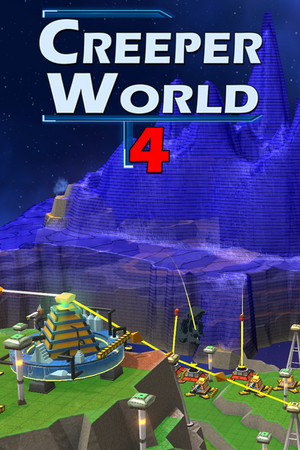
The 3D terrain makes camera angle part of tactical reading. Rotate to inspect a slope or blocked line of sight, then press the reset-camera command when height becomes hard to judge. Zoom out for the packet network and minimap warnings; zoom in when placing a weapon at the edge of a ridge. Hiding interface elements can produce a clean screenshot but can also remove the warning that explains a failure.
A selected movable unit displays a destination ghost. Green indicates an acceptable location. Double-clicking can select nearby units of the same type, Shift extends a selection and a drag box gathers a group. Custom first-person or cursor modes may replace those inputs, so open the scenario's Info panel before changing global bindings.
Performance
Separate simulation slowdown from display configuration
| Symptom | Likely layer | Reversible check |
|---|---|---|
| Whole game advances slowly | Simulation/CPU load | Test a small official map at default speed. |
| Camera feels choppy but timers are normal | Rendering/GPU or display | Lower visual settings and test windowed mode. |
| Only one custom map slows | Script, unit count or map size | Check its author notes and remove optional overlays. |
| Controls appear wrong | Remapped binding or custom mode | Open Settings and the map's control panel. |
| Bomber will not follow order | Selection, Runway state or scenario rule | Inspect the unit tooltip and available target action. |
| UI vanished | Visibility toggle | Restore default per-mission visibility options. |
Safe tuning
Change one setting and keep a known-good baseline
The maintained FAQ describes a frame-locked design: CPU-intensive Creeper simulation aims at 30 cycles per second, while display and UI run at a two-times multiplier for 60 FPS. When the simulation cannot maintain its target, reducing only resolution may not restore speed. Compare a small map, a large vanilla map and the problem custom map to identify CPU, graphics or scripting pressure.
Avoid unknown speed tools and modified executables. They can desynchronize scripts, scores and MVerse state. Use the built-in pause, speed and visibility controls exposed by the current build, update drivers through trusted sources and preserve the controls file before a full reset.
FAQ
Common questions
How do I rotate the camera?
Hold R and move the mouse, or hold the middle mouse button; press C to reset the view.
Can I remap hotkeys?
Yes. The maintained interface reference says keyboard and mouse commands can be customized in Settings.
Why does a large map run below 60 FPS?
The fluid simulation and scripts can be CPU-heavy; the game targets 30 simulation cycles and a 60-FPS presentation when hardware keeps up.
Are FPS-mode controls the same as normal play?
No. Custom first-person packages can define their own movement and weapon controls.
Sources
What we checked
Official listings establish current availability and product facts. Community pages are used for mechanics and build history, then labeled separately.
- OfficialOfficial Steam listing
- OfficialOfficial Knuckle Cracker product page
- OfficialOfficial Steam announcements
- ReferenceControls and keyboard shortcuts
- ReferenceGame interface controls
- ReferencePerformance FAQ